Report a breakdown in 60 seconds — from the machine itself
Stick a QR label on every machine. When something fails, the operator scans it, snaps a photo, marks severity and submits — no login, no training, own language, even offline. The Maintenance Head's phone rings with everything needed to decide.
What AssetAI does
Zero-friction reporting
A shop-floor PIN instead of operator accounts. Scan → photo → submit. Offline reports queue and sync automatically.
Best technician, suggested
At approval you see machine coverage (warranty/AMC) and technicians ranked by skill match, availability and on-call status.
Escalation timer
Unattended breakdowns re-alert approvers after your set minutes. Nothing sits unnoticed in a WhatsApp group again.
Honest downtime clock
Reported → approved → started → resolved: every timestamp is captured automatically, so the downtime split (waiting vs repairing) is real.
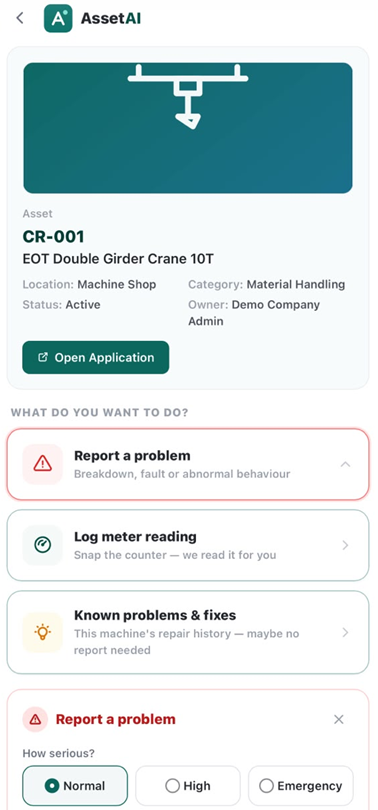
Scan the QR on the machine — report a breakdown in seconds, no operator login.
The mechanics above cover what happens after a scan; getting to that point reliably on an shop floor is its own discipline, especially where connectivity, shift patterns, and asset records are inconsistent. AssetAI treats the QR flow as the front door to the rest of the CMMS — see What is a CMMS for how breakdown records feed maintenance and asset management overall — but a front door only works if it's set up and staffed properly.
Designing the Flow for Real Shop-Floor Conditions
QR breakdown reporting is built to be used by an operator standing next to a stalled machine, often with a phone that isn't always online. A few design choices matter more in practice than they look on paper:
- No login, no app install for the reporting step itself — just a name, the company's scan PIN, and the form. This matters on lines where operators change shift-to-shift and IT can't provision individual accounts for everyone who might need to report a fault.
- Offline capture on the mobile PWA — if the phone has no signal when the operator hits submit, the form and its photos (up to 5) are held on the device with a banner confirming the pending sync, and they go through once connectivity returns. This is scoped to the mobile PWA's precached shop-floor pages; a plain browser scan without the app installed has no offline fallback, which is worth knowing before rolling this out on shared floor tablets.
- Failure mode from a managed master list, not free text, so the report is structured from the moment it's created rather than cleaned up later. This is what makes a failure Pareto possible downstream without a data-cleanup project first.
None of this replaces physical safety practice on the floor — the asset's linked safety measures print on the resulting job sheet, but the scan itself doesn't gate on any permit or safety sign-off, so plants that require a permit-to-work step need to keep that as a separate, manual control alongside the app.
Common Setup Mistakes to Avoid
Most of the friction we see with QR breakdown reporting traces back to two things done wrong at setup, not to the flow itself:
- Stale or missing "responsible" fields on the Asset Registry. Since the work order's responsible party defaults from the asset's technician or owner record, an outdated or blank field routes the job to the wrong person — or no one — the moment it's approved. Getting this right in the registry matters more than any setting inside the reporting flow itself.
- Nobody assigned to watch the approval queue. Normal and high severity reports don't raise a work order until someone approves them, and the flow itself doesn't call, text, or push-notify anyone when a new report lands — there's no paging mechanism behind it. Plants that treat the queue as a background task rather than a shift responsibility end up with reports sitting unactioned, which defeats the purpose of capturing them in the first place.
Getting both right is less about software configuration and more about process discipline — the same discipline referenced in most TPM practice, where failure response speed depends on people owning the loop, not just on having a tool that can record it. For plants scoping this against other shop-floor requirements, the use cases and industries pages cover how QR reporting sits alongside condition monitoring and preventive scheduling in a full maintenance program — or book a demo to see the queue and approval flow on a live plant setup.
Illustration of QR breakdown capture on mobile — not an actual screenshot.
QR breakdown reporting turns the moment a machine fails into a structured record instead of a phone call — every scan produces a numbered breakdown report (BD-000001, sequential per company) that feeds straight into AssetAI's work order and downtime tracking, with no separate system to reconcile afterward.
From Report to Work Order
Once an operator submits a report, what happens next depends on severity:
- Normal or high severity reports sit in a queue for approval. Approving one raises a breakdown maintenance (BM) work order pre-filled with the title from the description, priority mapped directly from severity, and the responsible technician defaulted from the asset's record in the Asset Registry.
- Emergency severity skips approval entirely — the work order exists the instant the report is submitted, because waiting for someone to review it defeats the purpose.
- If the machine-stopped flag was checked, the downtime clock starts from the reported time on the breakdown record itself — not when it's approved, not when the work order is created — so downtime-hours and downtime-cost KPIs reflect when the machine actually went down.
The breakdown report and the resulting work order are separate records with their own numbering, linked by the approval action. That separation matters for audit trails: you can always trace a work order back to the exact report and photos that triggered it.
Data Discipline That Pays Off Later
A breakdown report is only useful downstream if it's consistent, which is why the flow constrains a few fields rather than leaving everything free-text:
- Failure mode is chosen from a managed master list, not typed in — this is what keeps a failure Pareto usable months later instead of a pile of inconsistent phrases.
- Closure is gated. A BM (or CM) work order originating from a breakdown report cannot be marked Completed or Closed without a failure cause and a failure remedy recorded on it — enforced in code, not left to policy. Skip that step and the work order simply sits open.
- Severity maps to priority automatically. There's no separate priority field to argue over on approval; whatever severity the operator picked on the shop floor is what the planner's queue reflects.
This is the mechanism that makes RRR and criticality scoring possible later — the analysis is only as good as the discipline enforced at the point of failure, which is what this flow is built around. For plants also tracking OEE, consistent breakdown capture is a prerequisite, not an afterthought.
Where the Flow Has Edges
It's worth being clear about what this feature is not, so it's evaluated correctly:
- Approval for normal/high reports is still a manual step — someone has to open the queue. There's no automatic call, SMS, or push alert behind a scan.
- Offline capture (the form and photos stored on the phone until connectivity returns) is specific to the mobile PWA; a plain browser scan without the app installed has no offline fallback.
- Photos are capped at five per report — there's no video or voice-note capture.
- QR label printing and OCR nameplate capture belong to Asset Registry, not to this flow.
None of this is unusual for a CMMS built for Indian shop floors, where connectivity and device access vary by plant — see /industries for how the same flow plays out across sectors. If you want to see how breakdown data flows into scheduling and reporting on your own assets, book a demo rather than take the spec sheet's word for it.
QR Breakdown Reporting FAQs
How do I report a machine breakdown without logging into AssetAI on my phone?
Scan the QR label on the machine, type the asset name, enter your company's scan PIN, and submit — no login or app installation required. The QR Breakdown system works on a mobile web interface, so you use your browser directly. Your report is numbered sequentially (BD-000001, BD-000002, etc.) and captures the machine, severity level, failure mode, description, and up to 5 photos in a single submission. This is designed for shop-floor speed: any operator can report a breakdown in seconds without friction.
What happens to my breakdown report if the plant loses internet while I'm filling it out?
Your entire form—text, photos, everything—is saved on your phone automatically. A banner appears telling you the connection is down. When your device reconnects to the network, the report syncs to AssetAI without any action from you. This offline-first design ensures that breakdowns are captured even when connectivity drops, which is common in manufacturing environments with poor signal in certain areas of the plant.
Does an emergency breakdown create a work order instantly, or does someone have to approve it first?
Emergency severity reports skip the approval step entirely—a work order is created and raised the moment you submit the report. Normal and high severity reports go to an approver first; once approved, they become work orders. Emergency work orders are treated with the highest priority because the machine is assumed to be down and costing money. The distinction lets your maintenance team respond immediately to critical failures while maintaining a review process for less urgent breakdowns.
Can I close a work order from a breakdown report without recording what actually failed?
No. The system enforces that you must record both a failure cause and a failure remedy before the work order can be marked Completed or Closed. This requirement is built into the code, so there is no way to bypass it. The logic is simple: if you don't capture what failed and how you fixed it, you have no record to learn from, and your maintenance data becomes unreliable. Every breakdown becomes traceable knowledge about your equipment.
How does the downtime tracking work when I flag a machine as stopped in my breakdown report?
When you set the machine-stopped flag during your report submission, AssetAI records the exact time you reported it. The system then feeds this into downtime-hours and downtime-cost KPIs, giving you a real-time picture of how much production time and money each breakdown is costing. This clock starts from your reported time, not from when someone approves the report, so the downtime record is based on when the operator actually noticed the failure. You can then tie these metrics back to your glossary/oee and understand which equipment is driving losses.
What information gets pre-filled into the work order after I report a breakdown?
The work order title is auto-filled from your free-text description, the priority is mapped from the severity level you chose (normal, high, or emergency), and the responsible technician or owner defaults to whoever is assigned to that asset in the system. You select the failure mode from a master list during your report, and all of this flows into the work order. This means the BM team has a complete, ready-to-act ticket the moment they open it—no need to hunt for context or re-enter details. The approver or system (in the case of emergencies) simply raises the order with everything already in place.
Can I attach photos or documents to a QR breakdown report, and will they sync to the work order?
Yes, you can attach photos directly via the QR report. Images sync to the linked work order immediately if connected to internet, or queue for upload when connection returns. Documents like inspection reports can be added manually to the work order details after breakdown logging.